
Modding:Installing SMAPI on Windows: Difference between revisions
imported>Bun mNo edit summary |
imported>Pathoschild revert changes (that approach is simpler, but doesn't work for all players) |
||
| Line 20: | Line 20: | ||
: You can use SMAPI through the Steam client to enable the overlay and achievements. This requires a few more steps. | : You can use SMAPI through the Steam client to enable the overlay and achievements. This requires a few more steps. | ||
:# In the Steam client, right click on | :# Open [[Modding:Player FAQs#Game folder|your game folder]], select the full address, and press <tt>CTRL</tt> + <tt>C</tt> to copy it:<br />[[File:Modding - installing SMAPI on Windows - Steam 3.png]] | ||
:# Click '' | :# In the Steam client, right-click on ''Stardew Valley'' and choose ''Properties'':<br />[[File:Modding - installing SMAPI on Windows - Steam 1.png]] | ||
:# In the | :# Click ''General > Set Launch Options'':<br />[[File:Modding - installing SMAPI on Windows - Steam 2.png]] | ||
:# In the textbox... | |||
:## Type a single quote (<tt>"</tt>). | |||
:## Press <tt>CTRL</tt> + <tt>V</tt> to paste the path you copied in step 1. | |||
:## Then type this after the path: <pre>\StardewModdingAPI.exe" %command%</pre> | |||
:## It should look something like this (with your game path filled in):<br />[[File:Modding - installing SMAPI on Windows - Steam 4.png]] | |||
:# Click OK to save your changes. | :# Click OK to save your changes. | ||
:# | :# From now on, just launch the game through Steam to run SMAPI with the Steam overlay and achievements. | ||
<small>¹ To install manually instead, see instructions in the installer's readme.</small> | <small>¹ To install manually instead, see instructions in the installer's readme.</small> | ||
Revision as of 05:44, 31 July 2017
This page explains how to install SMAPI (the tool which lets you use mods) on Windows. See also:
Install
- Part 1: install SMAPI
- Run the game without SMAPI at least once so it can do first-time setup.
- Download the latest version of SMAPI.
- Extract the .zip file somewhere (but not in your game folder!).
- Double-click install.exe¹, and follow the on-screen instructions.
The installer will detect your game and add SMAPI for you. - If you use Steam, continue to the next section. Otherwise just run StardewModdingAPI.exe in your game folder to play with mods.
- Part 2: configure Steam
- You can use SMAPI through the Steam client to enable the overlay and achievements. This requires a few more steps.
- Open your game folder, select the full address, and press CTRL + C to copy it:
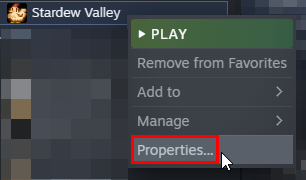
File:Modding - installing SMAPI on Windows - Steam 3.png - In the Steam client, right-click on Stardew Valley and choose Properties:
- Click General > Set Launch Options:
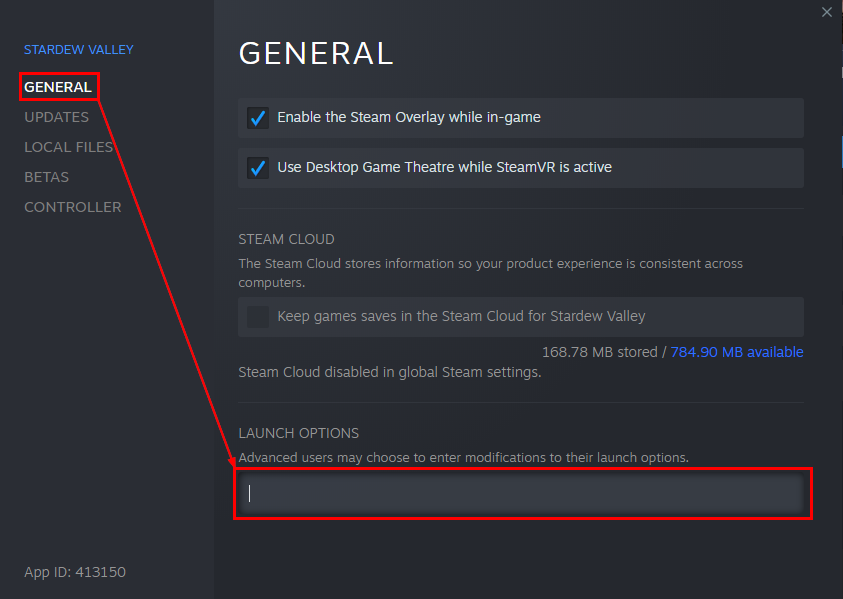
- In the textbox...
- Type a single quote (").
- Press CTRL + V to paste the path you copied in step 1.
- Then type this after the path:
\StardewModdingAPI.exe" %command%
- It should look something like this (with your game path filled in):
File:Modding - installing SMAPI on Windows - Steam 4.png
- Click OK to save your changes.
- From now on, just launch the game through Steam to run SMAPI with the Steam overlay and achievements.
- Open your game folder, select the full address, and press CTRL + C to copy it:


¹ To install manually instead, see instructions in the installer's readme.
Update
Just install the new version; the installer will automatically clean up previous versions. (You don't need to configure Steam again.)
Uninstall
Run install.exe and choose uninstall.