:## rename <samp>Stardew Valley.exe</samp> to another name such as <samp>Stardew Valley original.exe</samp>;
:## rename <samp>Stardew Valley.exe</samp> to another name such as <samp>Stardew Valley original.exe</samp>;
:## rename <samp>StardewModdingAPI.exe</samp> to <samp>Stardew Valley.exe</samp>.
:## rename <samp>StardewModdingAPI.exe</samp> to <samp>Stardew Valley.exe</samp>.
:# Launch the game through the Xbox app. (You won't be able to launch the new <samp>Stardew Valley.exe</samp> directly yourself.)
:# Launch the game through the Xbox app. (You won't be able to launch the new <samp>Stardew Valley.exe</samp> directly yourself.)
Line 105:
Line 105:
==Uninstall==
==Uninstall==
# Run [[#Install|run the installer]] again, but choose ''uninstall'' to remove SMAPI.
# Run [[#Install|run the installer]] again, but choose ''uninstall'' to remove SMAPI. (Not applicable for Xbox app.)
# If you [[#Configure your game client|configured Steam or GOG Galaxy]] to launch SMAPI, undo your changes:
# If you [[#Configure your game client|configured Steam or GOG Galaxy]] to launch SMAPI, undo your changes:
#* '''Steam:''' in the Steam client: right-click on ''Stardew Valley'', choose ''Properties > General > Set Launch Options'', and blank the launch options textbox.
#* '''Steam:''' in the Steam client: right-click on ''Stardew Valley'', choose ''Properties > General > Set Launch Options'', and blank the launch options textbox.
#* '''GOG Galaxy:''' in the GOG Galaxy client: click on Stardew Valley, click the settings icon next to the 'Play' button, click ''Manage installation > Configure'', and clear the ''Custom executables / arguments'' checkbox.
#* '''GOG Galaxy:''' in the GOG Galaxy client: click on Stardew Valley, click the settings icon next to the 'Play' button, click ''Manage installation > Configure'', and clear the ''Custom executables / arguments'' checkbox.
#* '''Xbox app:'''
## follow the [[#Xbox app|installation steps for Xbox app]] to open your game folder;
## rename <samp>Stardew Valley.exe</samp> to <samp>StardewModdingAPI.exe</samp>;
## rename the orginal exe that you renamed when you installed SMAPI back to <samp>Stardew Valley.exe</samp>.
(If you want to play without mods temporarily, you can just launch <samp>Stardew Valley.exe</samp> directly or rename your <samp>Mods</samp> folder instead.)
(If you want to play without mods temporarily, you can just launch <samp>Stardew Valley.exe</samp> directly or rename your <samp>Mods</samp> folder instead. Not applicable for Xbox app.)
Extract the .zip file somewhere (but not in your game folder, any subfolder of your game folder, or in a folder with parentheses in the path!) (Your downloads folder is a fine choice).
Double-click install on Windows.bat¹, and follow the on-screen instructions.
¹ To install manually instead, see instructions in the installer's readme.
Configure your game client
Steam
You need to launch SMAPI through Steam if you want the Steam overlay, achievements, and playtime tracking to work. (If you don't care about achievements or tracking game time, you can just launch StardewModdingAPI.exe in your game folder to play with mods.)
Here's how to configure it:
Keep SMAPI's installer window open. (If you already closed it, just run it again. No need to uninstall first.)
Copy the text in the installer window that looks like this (see how to copy text): Make sure you copy the entire line, including both quotation marks " and the %command% part. Your final path should look something like this: "Your path here" %command%
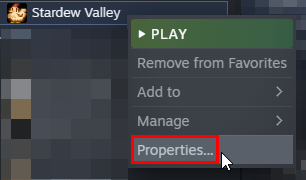
In the Steam client, right-click on Stardew Valley and choose Properties:
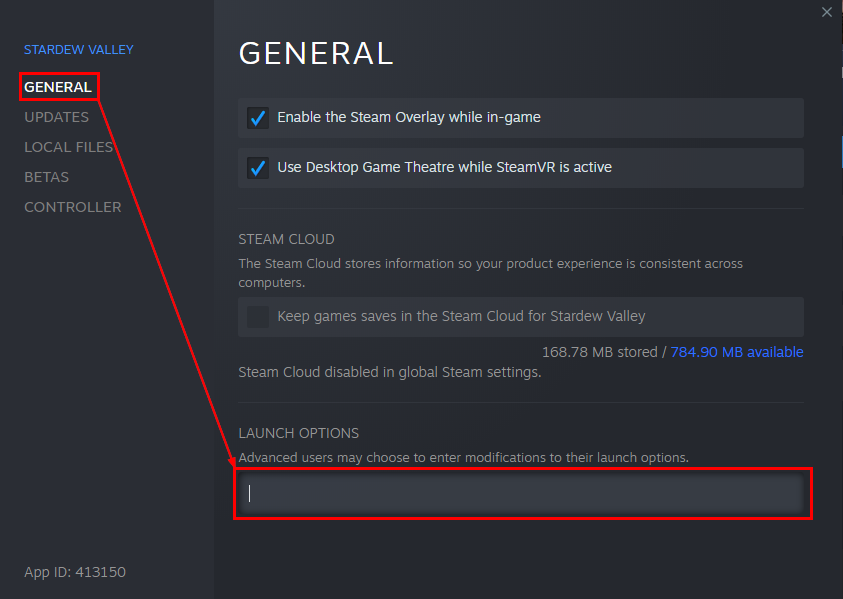
Click the textbox under Launch Options:
Replace anything in the textbox with the text you copied from the installer. To paste text, click in the box and press CTRL and V.
This text should consist of "Your SMAPI API Filepath" %command% Default for most users is "C:\Program Files (x86)\Steam\steamapps\common\Stardew Valley\StardewModdingAPI.exe" %command%
From now on, just launch the game through Steam to run SMAPI with the Steam overlay and achievements.
GOG Galaxy
You need to launch SMAPI through GOG Galaxy if you want its playtime tracking to work. (If you don't care about tracking game time, you can just launch StardewModdingAPI.exe in your game folder to play with mods.)
Here's how to configure it:
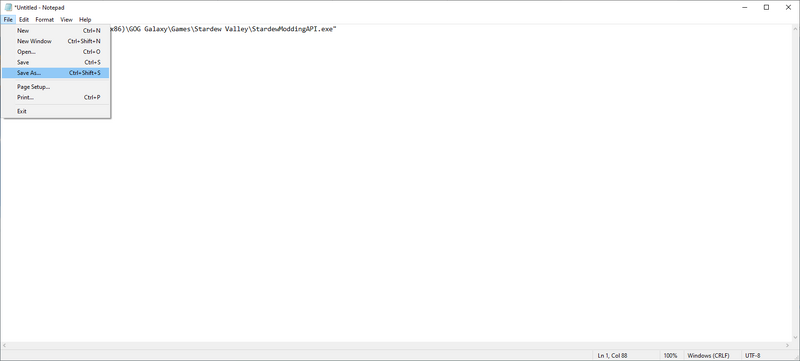
Open Notepad and paste in the following: start "" "C:\Program Files (x86)\GOG Galaxy\Games\Stardew Valley\StardewModdingAPI.exe" If Stardew Valley and SMAPI are not installed at C:\Program Files (x86)\GOG Galaxy\Games\Stardew Valley\, (the default location for most people), replace that location with the location of where you installed Stardew Valley.
Click on File, then Save As...
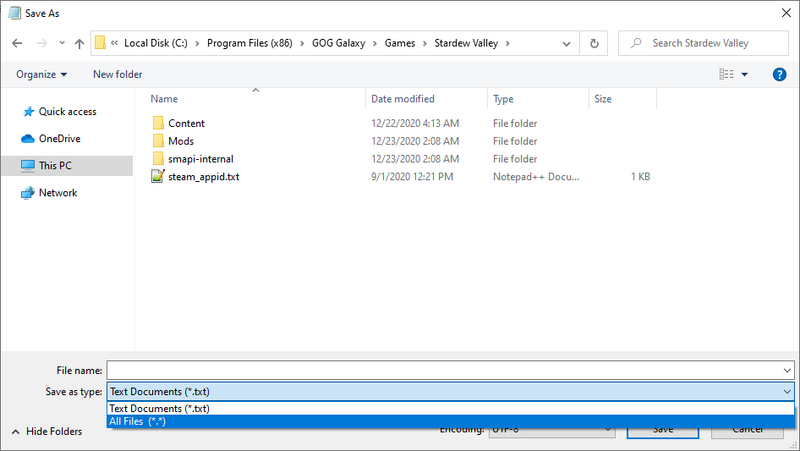
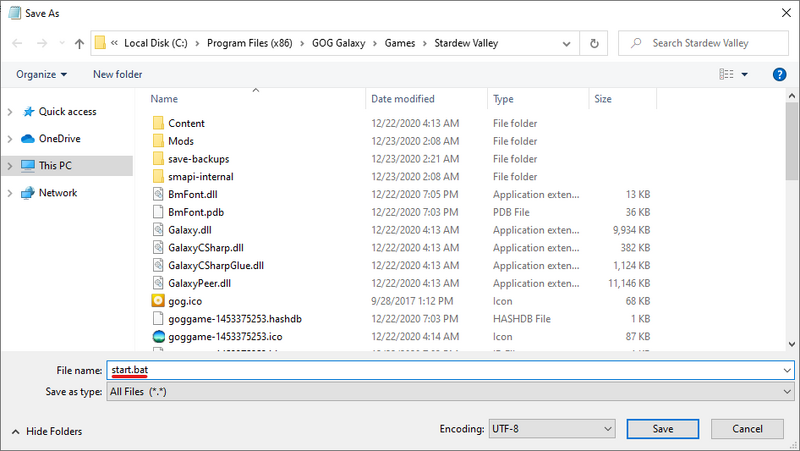
Navigate to your Stardew Valley installation folder and change the file type from Text Documents to All Files as shown below and then click Save.
Then type start.bat for the file name as shown below
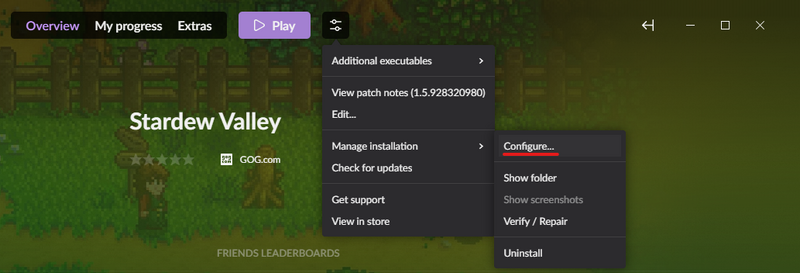
In the GOG Galaxy client, click on Stardew Valle' and then the settings icon on the right-hand side of the 'Play' button, then hover over 'Manage installation' and click 'Configure...' as shown below.
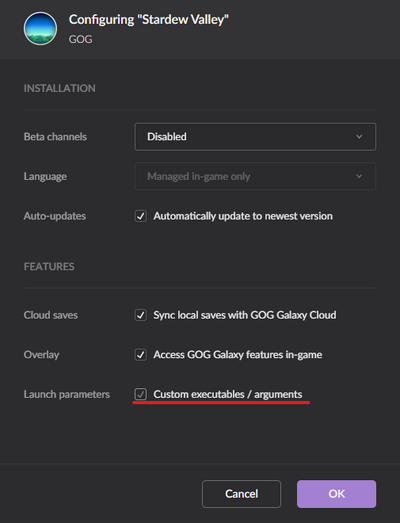
A new menu will appear. Check the "Custom executables / arguments" box.
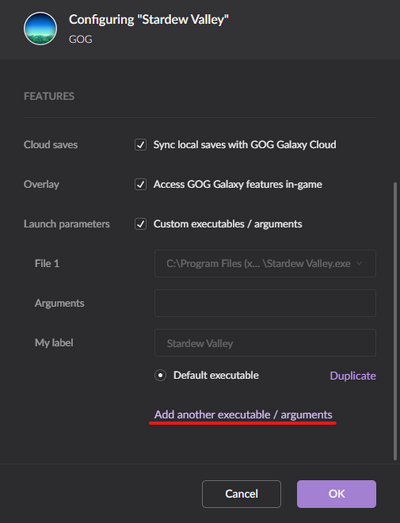
Then click 'Add another executable / arguments'
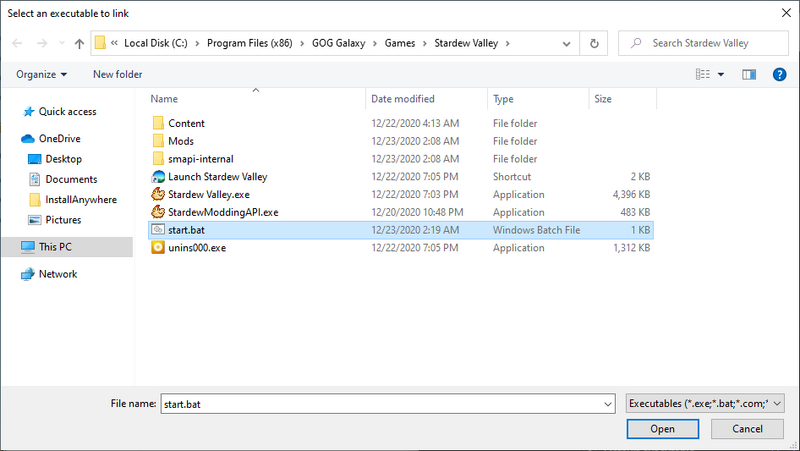
Select start.bat in the window that appears and then click Open.
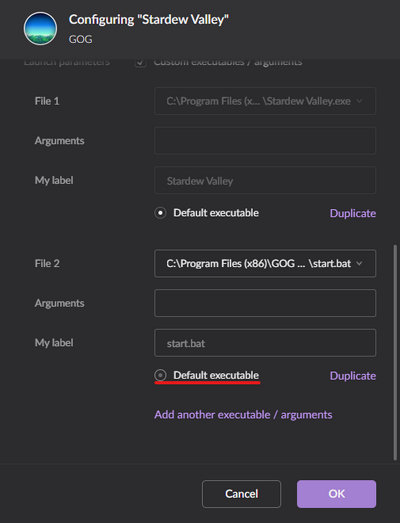
Finally, click the circle next to 'Default Executable' underneath File 2, then click OK.
From now on, you can launch Stardew Valley through GOG Galaxy and both the SMAPI console and game will load as expected!
Xbox app
Mods work with the Xbox app, but there's a few extra steps.
Before you install SMAPI:
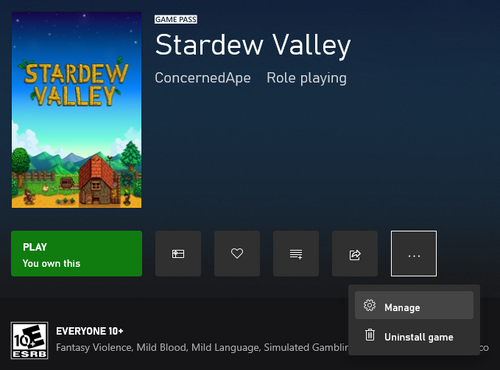
Open the Stardew Valley section in the Xbox app.
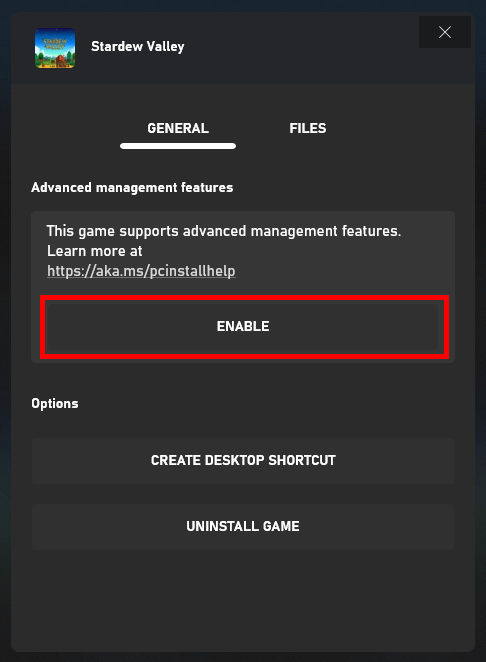
Click the "Enable Mods" button:
Click the "Open Mods Folder" button to open your game folder in the file explorer:
Copy the full path from the address bar at the top.
Run the SMAPI installer:
Run the SMAPI installer like usual, but when it asks where to install, enter the path you copied from the previous step.
After you install SMAPI:
In your game folder:
rename Stardew Valley.exe to another name such as Stardew Valley original.exe;
rename StardewModdingAPI.exe to Stardew Valley.exe.
Launch the game through the Xbox app. (You won't be able to launch the new Stardew Valley.exe directly yourself.)
Update SMAPI
Just install the new version; the installer will automatically clean up previous versions. (You don't need to configure Steam or GOG Galaxy again.)
Uninstall
Run run the installer again, but choose uninstall to remove SMAPI. (Not applicable for Xbox app.)
Steam: in the Steam client: right-click on Stardew Valley, choose Properties > General > Set Launch Options, and blank the launch options textbox.
GOG Galaxy: in the GOG Galaxy client: click on Stardew Valley, click the settings icon next to the 'Play' button, click Manage installation > Configure, and clear the Custom executables / arguments checkbox.
rename Stardew Valley.exe to StardewModdingAPI.exe;
rename the orginal exe that you renamed when you installed SMAPI back to Stardew Valley.exe.
(If you want to play without mods temporarily, you can just launch Stardew Valley.exe directly or rename your Mods folder instead. Not applicable for Xbox app.)
Troubleshooting
"Oops, couldn't find the game automatically"
If you are using Game Pass, folder permissions will probably cause problems if you try this. Otherwise, if the installer shows that message, you can help it find the game folder. To do that: